
1.Introduction
PresupuestAPP is the web and mobile app built for self-employed tradespeople and small construction companies — plumbers, electricians, painters, bricklayers, general contractors, carpenters — who need to create construction quotes quickly, professionally and, above all, in line with tax regulations.
It solves three problems at once: meeting invoicing compliance without hiring an expensive accountant, getting paid on time with legally valid digital signatures and automatic staged payments, and winning new clients through the built-in Professional Network. All from your phone, with offline mode and available in 8 languages.
2.Compliant invoicing — chained hash, timestamps & verification QR
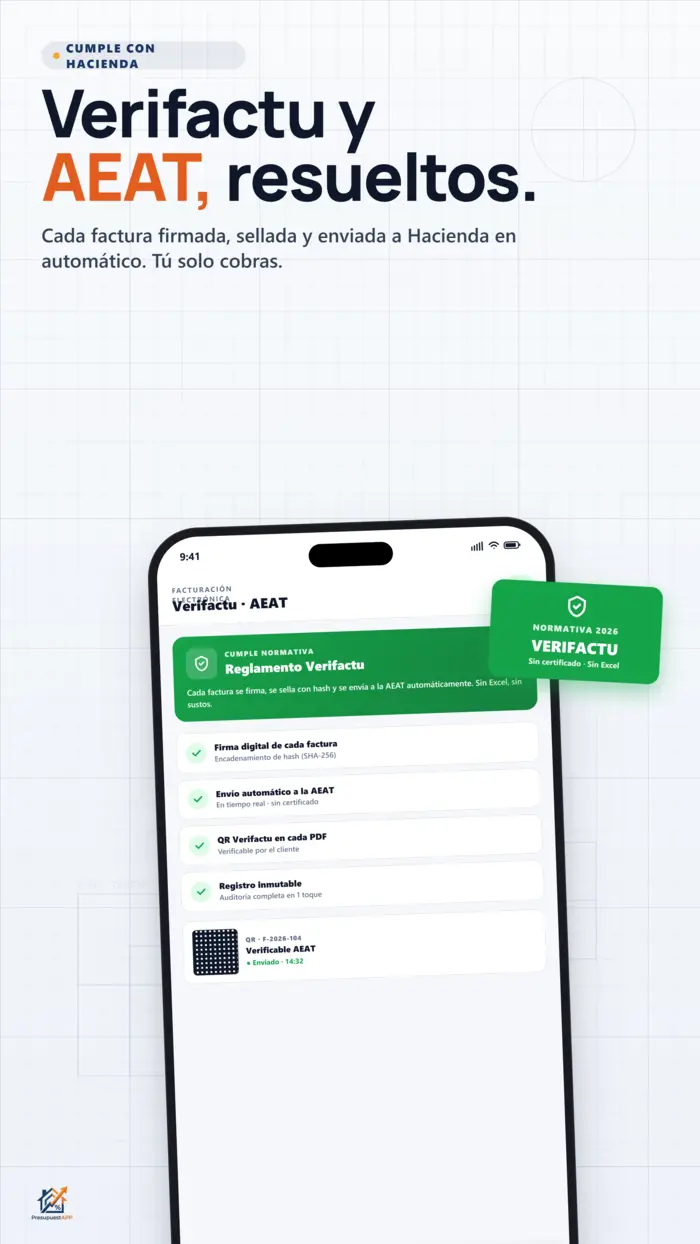
This is probably the main reason you're reading this. Spain's Royal Decree 1007/2023 (Verifactu) — published as BOE-A-2024-9484 — requires all invoicing software to guarantee the integrity, preservation, accessibility, readability, traceability and immutability of billing records. Similar e-invoicing anti-fraud regulations are being rolled out across the EU; PresupuestAPP is built with these principles from the ground up.
What Verifactu is, in plain English
Instead of being able to edit invoices after the fact (a classic fraud vector that Spain's tax authority targets), each issued invoice is cryptographically chained to the previous one. If anyone changes even a single penny on an old invoice, the entire subsequent chain is invalidated. Authenticity can be verified by scanning a QR code.
What PresupuestAPP does for you
Everything compliant invoicing requires, already built in:
- Anti-fraud hash chain — each invoice references the SHA-256 hash of the previous one, forming an immutable chain.
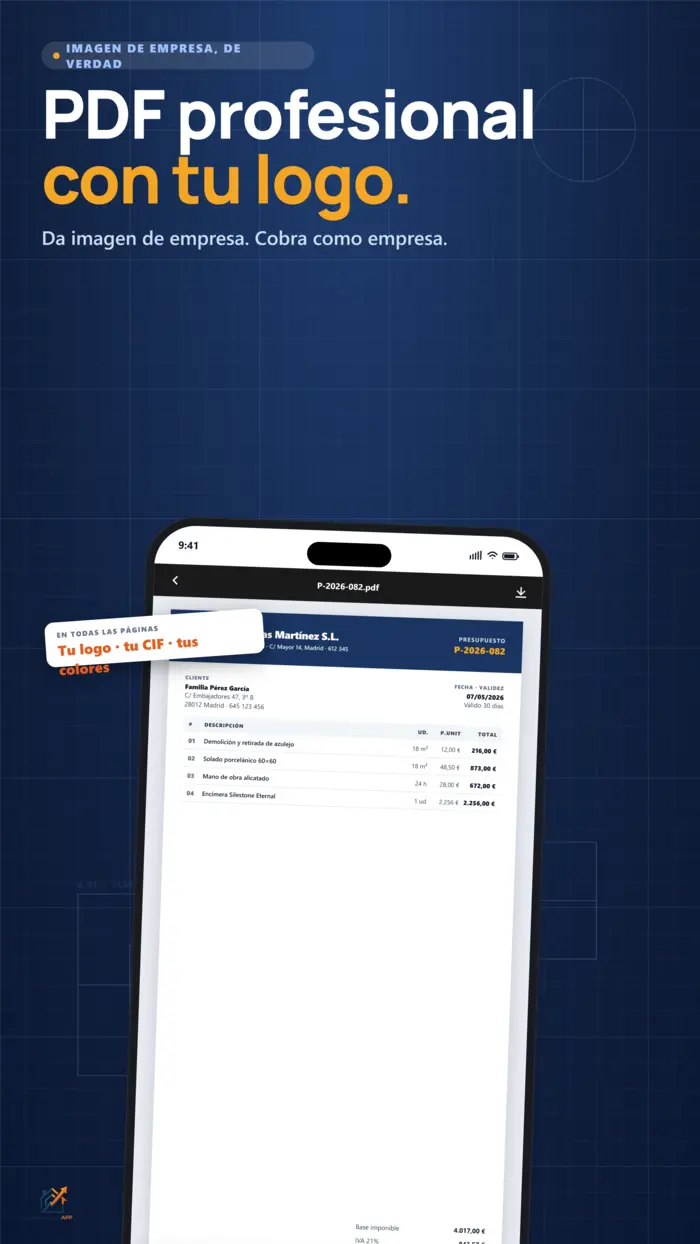
- QR code on every PDF — the client or an inspector can scan it to verify the invoice authenticity instantly.
- Direct submission to Spain's tax authority — the system uploads the record automatically (required for businesses operating in Spain).
- Secure digital certificate — you can upload your FNMT certificate or sign via AutoFirma from your own computer. Uploaded certificates are stored AES-encrypted at rest.
- Invoice status — pending, accepted or rejected, visible on each invoice record.
- Auditable logs for 3 years — every event is recorded with a timestamp in case of a tax audit.
- Tax ID validation before issuing — if the client's tax ID is entered incorrectly, the system catches it before submission.
Is it an alternative to an accountant?
| Option | Monthly cost | Compliant invoicing | Quotes |
|---|---|---|---|
| Accountant / adviser | ~€50 / month | Yes (they handle it) | No |
| Traditional invoicing software | ~€30 / month | Yes (separate module) | Limited |
| PresupuestAPP | from €9.99 | Included | Included |
BOE-A-2024-9484. Consult the official text at boe.es for technical details.
3.Freelancer workflow
The app is designed as a single end-to-end flow: from first contact with the client to collecting the final payment. Here is the real sequence, step by step.
Step 1 — Create a quote (4-step wizard)
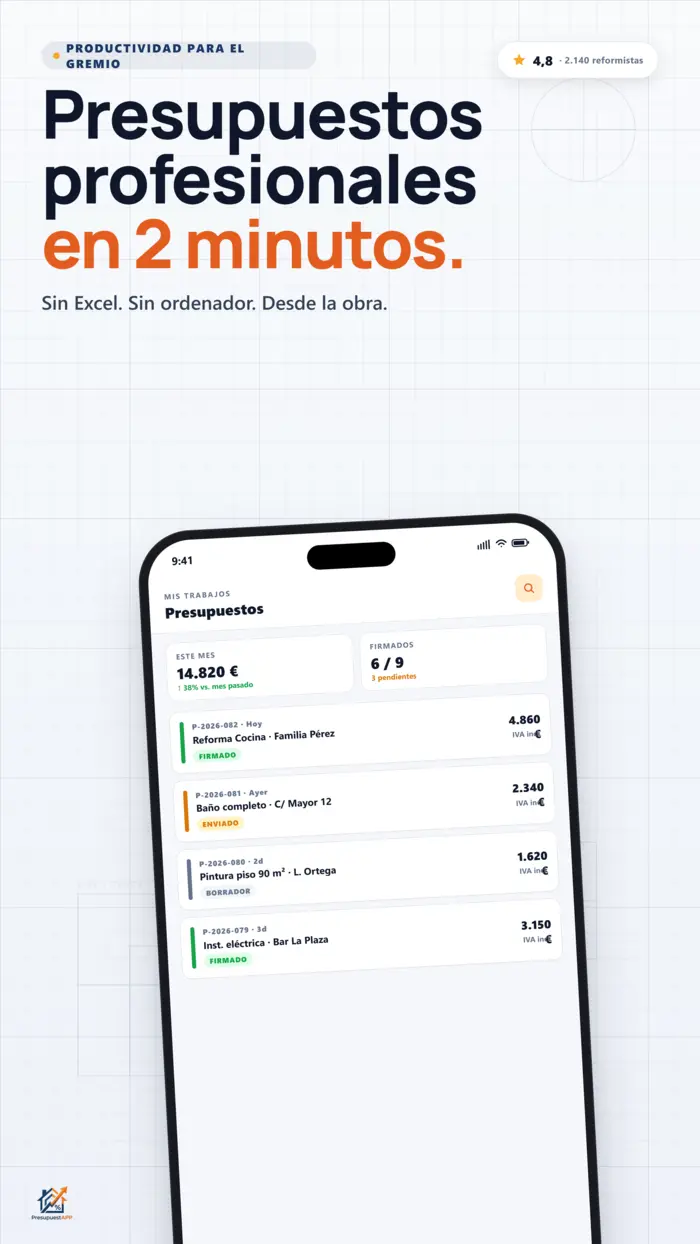
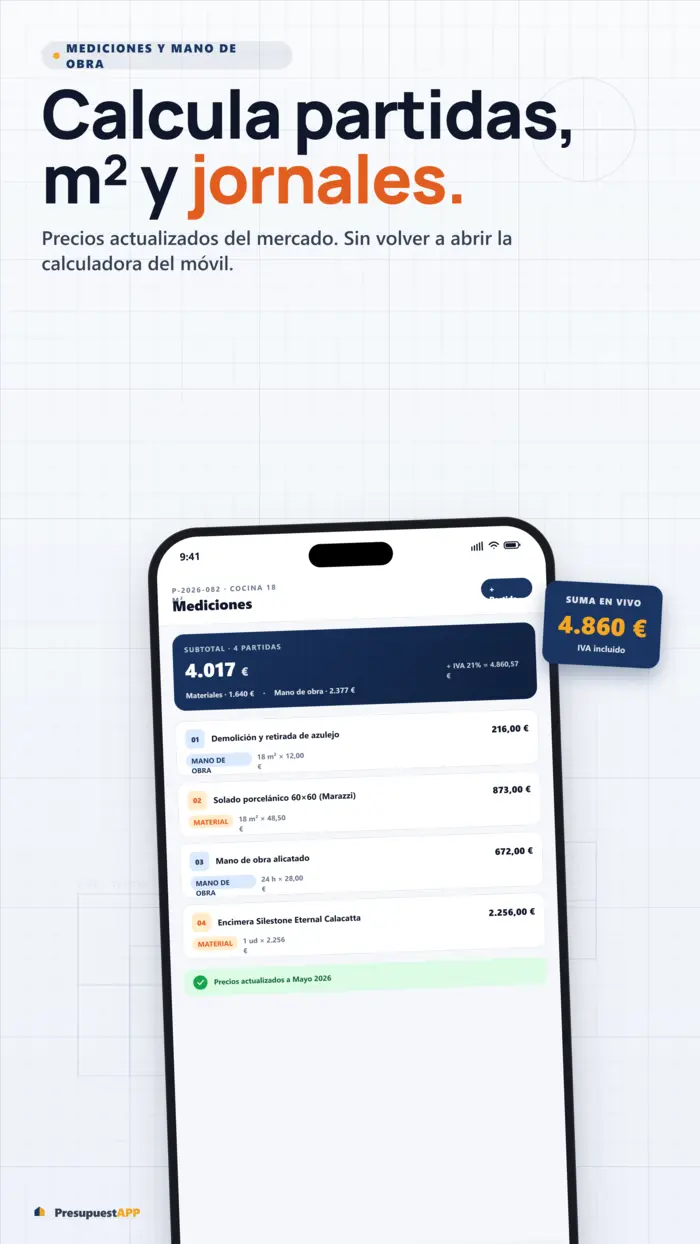
The wizard guides you through four screens: Client (select existing or add new, with tax ID validation), Project (address, timeline, description), Line items (what you charge: materials, labour, measurements), and Preview (PDF preview before sending).
Step 2 — Reusable templates
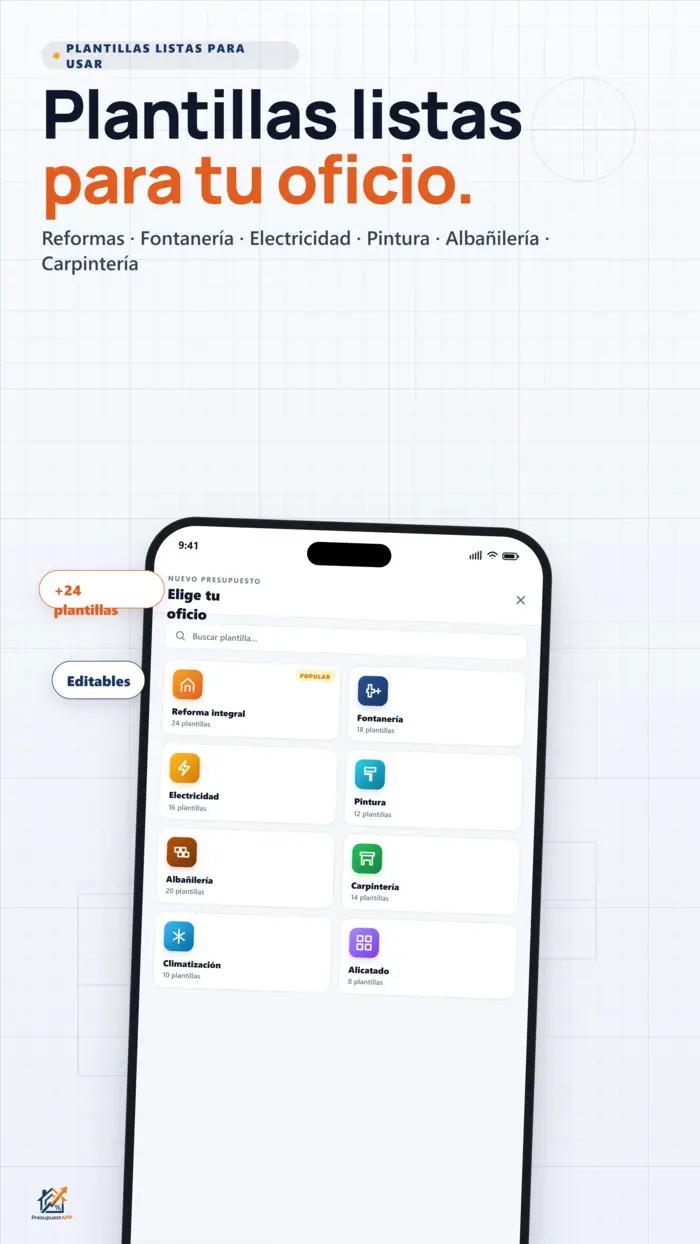
Any quote can be saved as a template. Next time you quote a similar bathroom renovation, you start 80% done and just adjust materials and measurements. Templates are private to you or your team.
Step 3 — Smart measurements
The built-in geometric calculator saves you the paper and the measuring tape:
- Surface area calculation (m², m³, linear metres) with basic shapes, trapezoids and composite forms.
- Automatic deduction of openings: mark doors and windows and they are subtracted from the total.
- Conversion to litres of paint based on product coverage and number of coats.
- Conversion to boxes of tiles based on tile size and waste percentage.
Step 4 — Send to the client via WhatsApp
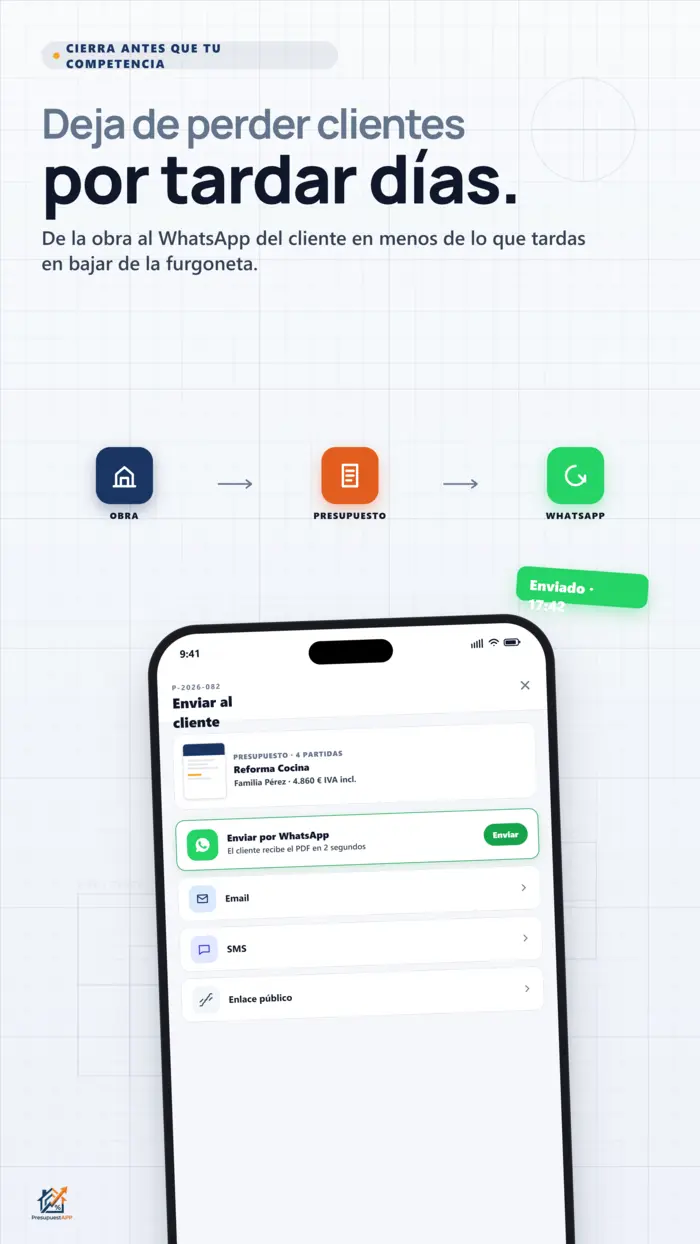
One tap and the PDF is sent via WhatsApp with a pre-written message and a unique signing link. It also works by email if you prefer.
Step 5 — Client signature with timestamp
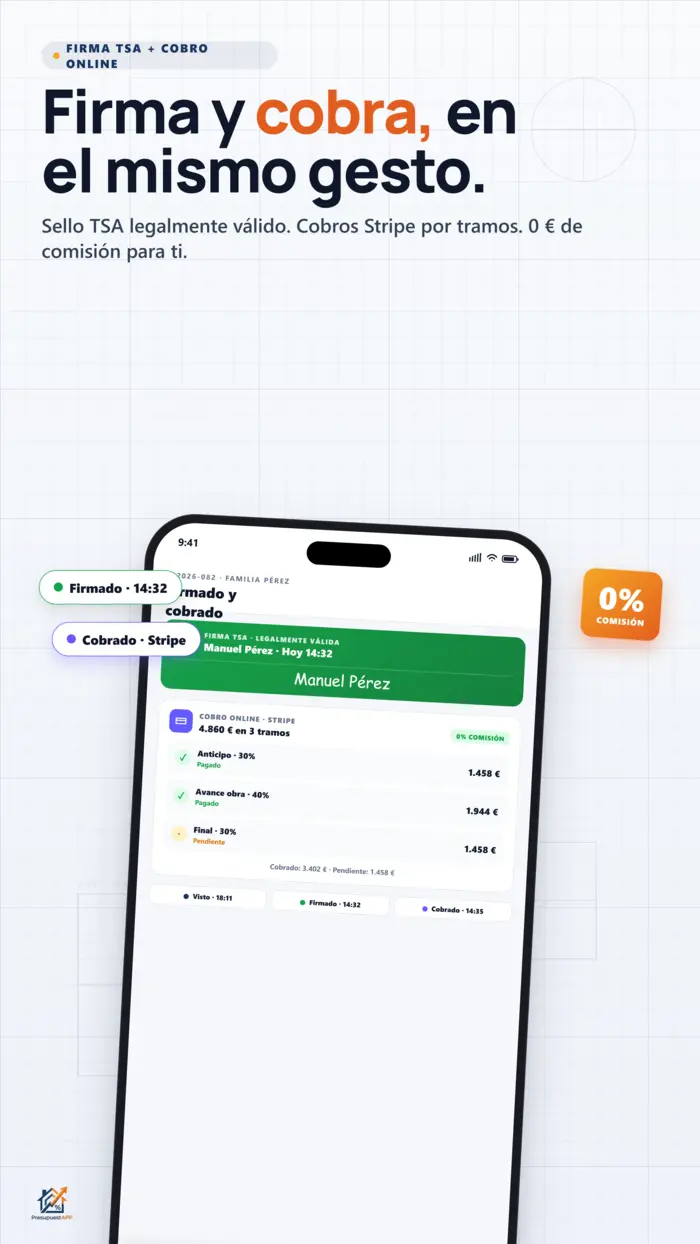
The client opens the link on their phone, views the quote and signs with their finger. When they sign, PresupuestAPP requests a TSA timestamp (RFC 3161 / eIDAS) from a qualified time authority. This seals the document with a legally valid timestamp across the EU: if the client later claims they did not sign, you have the proof.
Step 6 — Staged payments with Stripe
You define stages (for example: 30% upfront, 40% at tiling, 30% on handover). Stripe generates a payment link for each stage; when the client pays, a webhook marks that stage as collected in the app. Works with card, Apple/Google Pay and SEPA bank transfer.
Step 7 — Convert to invoice → compliant chain → submission
Once the quote is accepted and paid (or partially paid), you convert it to an invoice with one tap. The invoice enters the hash chain, receives its verification QR code and is submitted automatically. You never touch the XML.
Step 8 — Full version history
Every change to a quote is recorded: the version 1 you sent, version 2 with the 5% discount, version 3 with the extra line item. You can view a visual diff between versions and restore any of them. Useful when a client argues "that's not what you quoted me."
4.B2C Professional Network
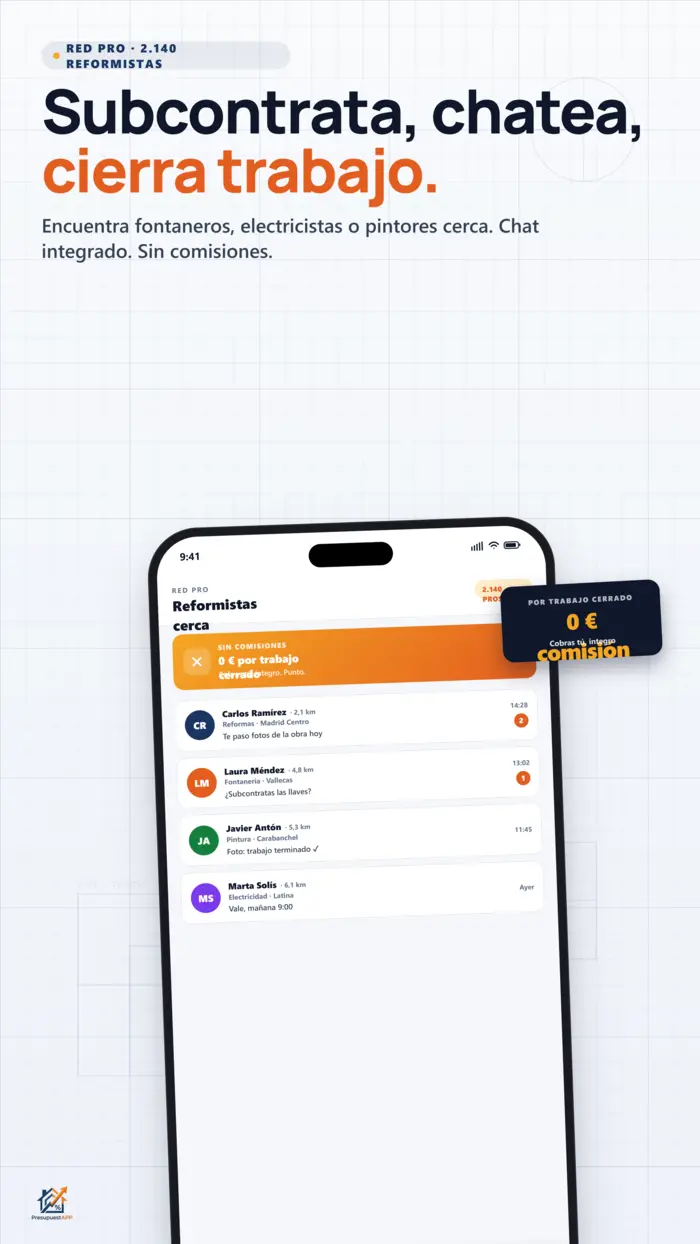
As well as managing your existing clients, PresupuestAPP is a lead-generation network: clients looking for a tradesperson for a specific job can find you directly.
How to activate it
In Settings → Professional Network you activate three independent toggles:
- Appear in the network — your profile is visible to clients and other tradespeople.
- Accept client requests — clients can send you quote requests.
- Accept subcontracting — other tradespeople can offer you work (see section 5).
How clients see you
Clients filter by area and trade. They see your profile, photos of past work, verified reviews and average response time. They send you a request with photos of the job to quote (a photo of the current kitchen, the bathroom, etc.).
Integrated chat and response
There is real-time chat with the client to answer questions before quoting. When you are ready, you send a pre-filled quote using the data from their request — no need to retype their address or phone number.
Verified reviews
Only clients who have signed at least one quote with you can leave a review. This prevents fake or competitor reviews. The average is displayed on your public profile.
4b.Quote Request System
Requests are the bridge between client and tradesperson. A client sends a quote request to a Professional Network member, who receives it in their inbox and responds with an official quote. Each request sent deducts 1 from the client's monthly balance.
Request plans for clients
Clients looking for tradespeople have three tiers:
- Free — 3 requests per month. Enough to compare up to 3 tradespeople for a one-off project.
- Basic (€4.99/month) — 10 requests per month. Ideal for those with recurring work or several projects running simultaneously.
- Premium (€9.99/month) — Unlimited requests. For property developers, residents' associations or asset managers with a constant volume of projects.
When is a request deducted?
The balance is deducted at the moment the client sends the request to the tradesperson, not when the tradesperson responds. If the tradesperson declines or does not respond within 48 hours, the credit is automatically refunded.
Business plans with included requests
Professionals on Business and Developer plans also have a monthly request balance to find subcontractors within the Network at no extra cost:
- Business — 10 requests/month included for B2B subcontracting.
- Developer — unlimited requests for B2B subcontracting.
Premium plan: no deductions
Clients on the Premium plan do not see their balance decrease when sending requests. They can send requests to as many tradespeople as needed in parallel to compare proposals without any penalty.
5.B2B Subcontracting Marketplace
The other side of the Professional Network: when you need another tradesperson. For example, you are a general contractor and need an electrician for a specific job.
- You post a job: "Need electrician for 90 m² property in Málaga, 2-week timeline, approximate budget €1,800".
- Network professionals can bid with their proposal and price.
- Only verified professionals (with a validated account and reviews) can bid — this keeps quality high.
- Direct chat with each bidder to negotiate before awarding the job.
- When you award the job, the relationship moves into your standard CRM flow: internal quote, signature, invoice, etc.
6.Teams: multi-user with roles
If you have employees or partners, everyone can work on the same company account with differentiated roles.
| Role | Main permissions |
|---|---|
| Admin | Full access: account billing, members, settings, delete. |
| Sales | Create quotes, manage assigned clients, view own pipeline. |
| Technician | View assigned quotes, mark project progress, upload photos. |
| Accounts | View invoices, export to Holded, manage payments. |
Quotes can be assigned to a responsible sales person and a separate technician. Invitations are sent by email with a unique single-use token. Account billing adjusts automatically to the number of active members.
7.Intelligence and prediction
PresupuestAPP uses your own history (and anonymised market data) to help you quote more accurately:
- "Presi" — the AI assistant suggests prices for a new line item based on what you and similar tradespeople have charged on comparable jobs.
- Low-margin detection — if you are about to lose money (sale price < estimated cost), the app warns you and, optionally, blocks sending until you confirm.
- Acceptance probability — each quote shows a badge like "📊 Similar quotes were accepted 65% of the time" based on your history.
8.True offline mode
PresupuestAPP is a PWA (Progressive Web App). That means:
- On Android you get the native app from Google Play Store with a 100% native experience.
- On iOS and Chrome desktop you can "Add to Home Screen" and it installs as an app — opens full screen, no browser bar.
- All critical data is saved locally. You can create a quote on a job site with no signal, in a basement, in an underground car park.
- Requests that require connectivity (sending PDFs, syncing, etc.) are queued in an outbox and execute automatically when the connection returns.
- A visible indicator in the header like "🔌 Offline · 3 pending" lets you know what is left to sync.
9.Multi-language
Interface and PDF templates available in 8 languages: Spanish, English, French, German, Portuguese, Italian, Dutch and Polish.
The most useful bit: when a foreign client receives the quote, they receive it in their language, not yours. If you work in expat areas — Costa del Sol, Alicante, Balearics, Canaries — you can send a German client a PDF in German while you keep working in English. That reduces language-barrier rejection and increases acceptance rates.
10.Integrations
- Holded — export invoices to your accountancy software. If you already use Holded with your accountant, compliant invoices arrive there automatically.
- Stripe / Stripe Connect — card payments, Apple/Google Pay and SEPA bank transfer. The account is yours: money goes directly to your bank account.
- Spain's tax authority (Verifactu) — direct submission with your digital certificate (required for businesses operating in Spain).
- Google login — optional, for passwordless sign-in.
11.Security and privacy
We handle sensitive data (tax IDs, digital certificates, client data) and take it seriously:
- HttpOnly cookie sessions — sessions are not accessible from JavaScript, neutralising session theft via XSS.
- CSRF tokens on mutations — every operation that modifies data validates a unique token.
- Enforced HSTS — the browser only connects over HTTPS.
- Restrictive CSP header (Content Security Policy) — blocks inline scripts and unauthorised domains.
- No third-party trackers — no Facebook Pixel, no aggressive analytics. Only Stripe (payments) and Google OAuth (optional login).
- Data encrypted at rest — digital certificates are stored AES-encrypted.
- GDPR compliant — marketing consent is opt-in (not by default), right to erasure implemented, full data export in JSON.
- Servers in Spain / EU — LiteSpeed VPS with European hosting. Your data never leaves the EU.
12.Plans and pricing
There are two types of plan: professional (for freelancers and businesses that send quotes) and client (for individuals requesting quotes on the Professional Network).
Professional plans
| Plan | Price / month | Send quotes | Request (Pro Network) |
|---|---|---|---|
| Free | €0 | 5 total (not monthly) | — |
| Freelancer | €9.99 | 15 / month | 30 / month |
| Professional | €15.99 | 30 / month | 60 / month |
| Business | €22.99 | 60 / month | Unlimited |
| Developer | €34.99 | Unlimited | Unlimited |
Client plans (Professional Network)
| Plan | Price | Credits / requests |
|---|---|---|
| Free | €0 | 1 credit per month |
| Basic | €8 | +10 rollover credits |
| Premium | — | Unlimited |
13.Referral programme
If you recommend PresupuestAPP to a colleague and they sign up and become a paying user, you earn one free month. Stackable up to a maximum of 12 consecutive months at 100% discount. Bring 12 different people and you pay nothing for a year.
Your referral link is in Settings → Referrals. You can copy it and send it via WhatsApp straight away.

14.Support
Two options:
- Email
soporte@presupuesta.eu— we respond during Spanish business hours. - In-app form: Settings → Support. Automatically attaches the app version, device and recent errors, which speeds up diagnosis.